
Knowledge Library
Driver topics made easy to understand
Browse clear educational guides about software drivers and how printers, audio devices, graphics, USB, network, Bluetooth, chipset, storage and other hardware work with your computer.
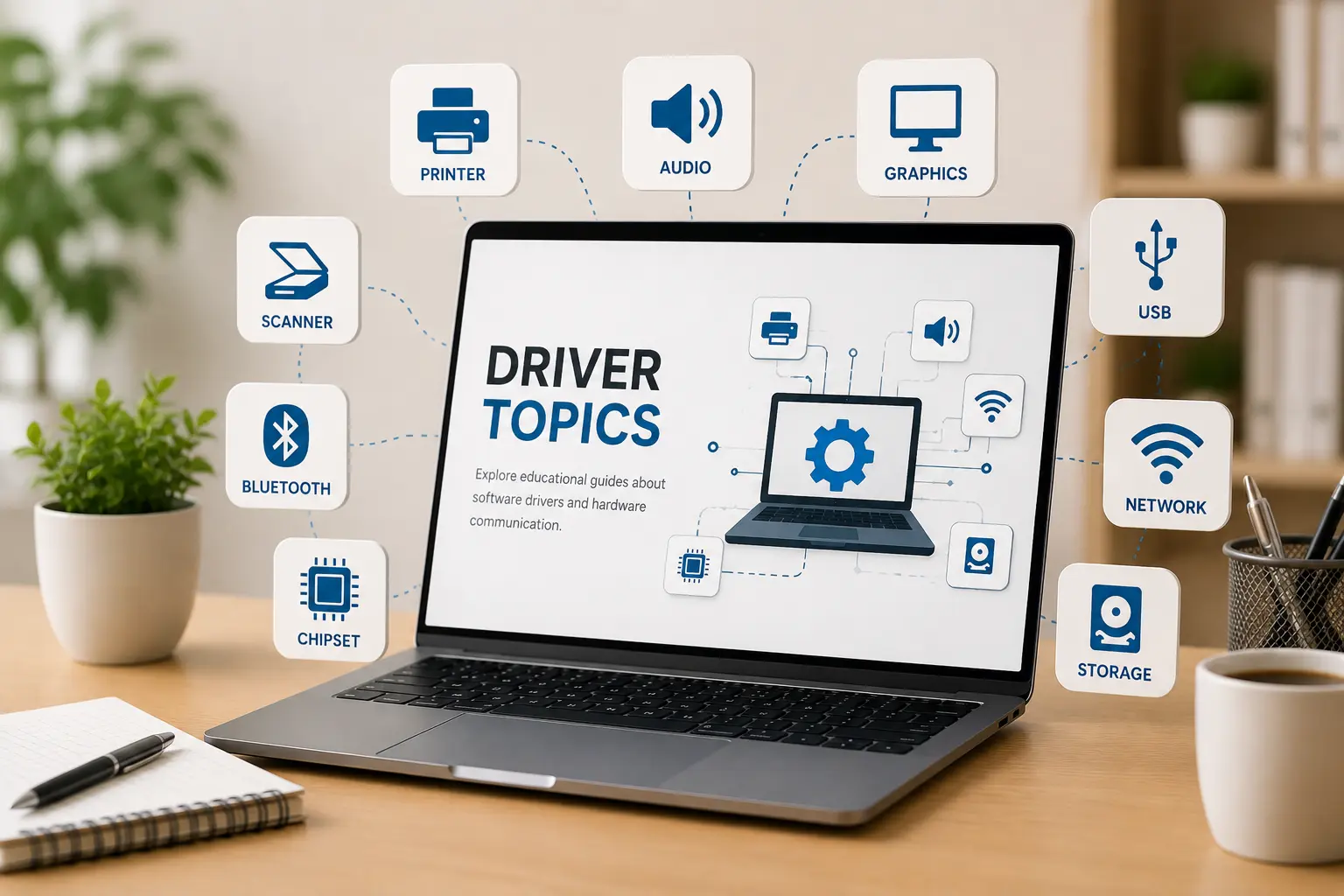
Driver topics
14+ Guides
14+
Driver categories explained in simple words.
Easy
Simple topic flow for beginner learning.
Clear
Understand hardware and operating system communication.
How printer driver setup works
Follow these simplified diagnostic steps to configure your connections and resolve printer offline status errors.
Check Cables & Wi-Fi
Ensure physical USB connection is firm or verify network router SSID pairing status.
Verify Spooler Service
Press Win+R, type services.msc, find the Print Spooler registry, and halt active queues.
Purge Print Spool Cache
Navigate to C:\Windows\System32\spool\PRINTERS and clear all temporary log folders.
Install Official INF Driver
Retrieve the authorized installation driver files directly from your manufacturer portal.
Reset Print Queue
Restart the Print Spooler service to reactivate connection routes for successful printing.
Verified Printer Literature
Sourced strictly from official Microsoft & manufacturer support portals for verified queue troubleshooting.
How router Wi-Fi setup works
Configure gateway IP settings, modify wireless SSID name profiles, and resolve network drop errors.
Access Gateway IP
Enter your router's default address (such as 192.168.1.1) directly into browser search bars.
Enter Credentials
Input your default admin login credentials matching information labels on router backplates.
Configure Wireless SSID
Create a new secure network profile name and set advanced WPA3 security passcode protocols.
Manage Signal Channels
Enable both 2.4 GHz and 5 GHz frequency bands to reduce signal overlapping and drops.
Flush DNS Resolver
Execute `ipconfig /flushdns` in terminal programs to clear corrupt system gateway resolver logs.

Verified Wi-Fi Literature
Sourced directly from official router firmware documentation for secure local configuration setups.
How PC performance works
Learn how device drivers, startup logs, and allocation tables impact system speed and performance settings.
Inspect Device Manager
Press Win+X, select Device Manager, and inspect lists for yellow warning flags on ports.
Update Outdated Chipset
Identify hardware VID/PID details and execute official INF setup updates from OEM libraries.
Manage Startup Programs
Open Task Manager, switch to the Startup panel, and disable high impact auto-launch files.
Clear Temporary Logs
Remove temporary storage files from main system folders to restore read/write access speeds.
Verify Device Translation
Check kernel communication logs to confirm drivers translate instructions without bottleneck faults.
Verified Hardware Literature
Sourced from OEM documentation archives for chipsets, hardware acceleration, and CPU architecture.
How email sync & updates work
Configure secure IMAP/SMTP mail server configurations and clean stuck Windows update caches.
Specify Server Ports
Select Incoming server as IMAP (port 993) and Outgoing mail server as SMTP (port 465).
Enable Secure SSL/TLS
Enable SSL/TLS security encryption flags in advanced mail client properties to sync folders.
Generate Account App Password
Create a unique 16-character passcode from mail host settings if multi-factor authentication is active.
Freeze Stuck Update Queues
Open Command Prompt as admin, type `net stop wuauserv` to freeze looping updates.
Purge Software Update Cache
Delete files in C:\Windows\SoftwareDistribution\Download and run `net start wuauserv` to reset updates.

Verified Mail & OS Libraries
Sourced from Gmail help centers and official Microsoft Update catalogs to ensure secure protocol setups.
Topic Preview
Explore common driver areas
Learn what different driver categories do and how they support computer hardware communication.
Device Output
Printer, audio, scanner, webcam, and display-related learning topics.
Connectivity
WiFi, Ethernet, Bluetooth, USB, and connected device communication basics.
System Hardware
Chipset, storage, BIOS, UEFI, and motherboard-level driver concepts.
Input Devices
Keyboard, touchpad, mouse input, gestures, and basic control behavior.
Learning Path
Understand drivers step by step
Choose Topic
Select a driver category such as printer, audio, USB, Bluetooth, chipset or storage.
Read Concepts
Learn the meaning, purpose, and role of that driver in simple language.
Understand Role
See how hardware devices and operating systems communicate through driver software.
Explore More
Move to related driver topics and build your understanding step by step.